 Onibaku
Live Endnotes
Endnotes for Google Docs™ that keep up with your edits. Convert footnotes to endnotes in one click, add new notes anywhere, and press Rebuild after moving or deleting text: every marker and note is renumbered and put back in order.
Install from the Google Workspace Marketplace
Free to start. Pro is £49 once and yours for good.
One click, then keep going
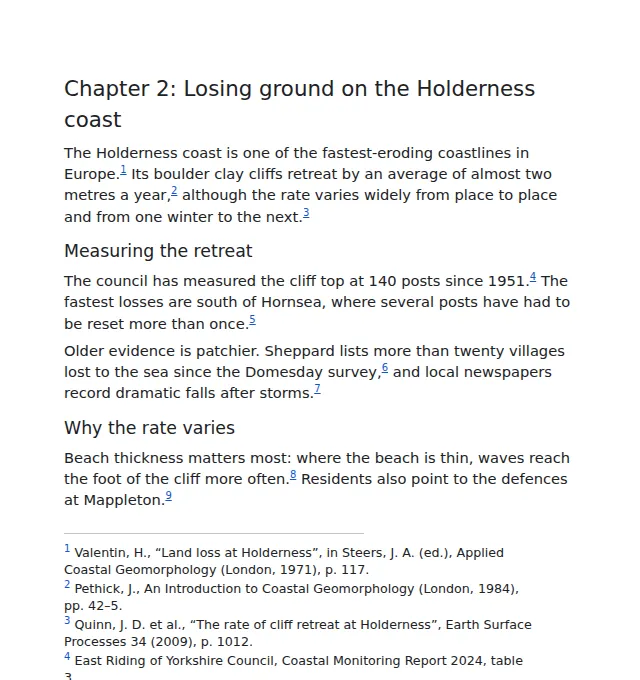
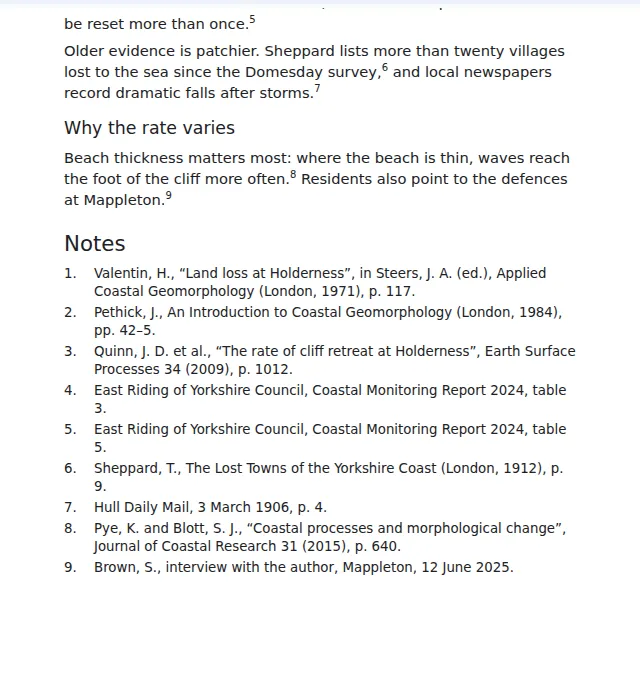
Footnotes to endnotes, in one click
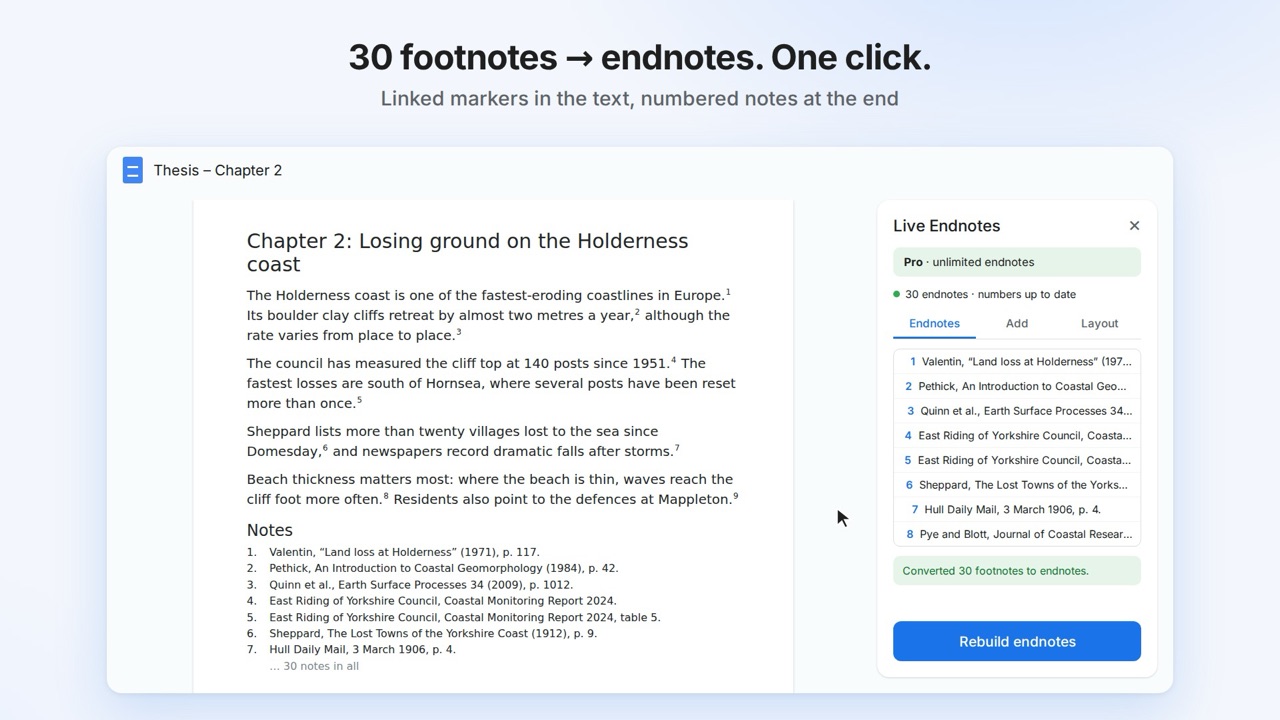
Each footnote becomes a superscript marker linked to a numbered note in a Notes section at the end. Formatting in the notes, like italic titles and links, comes with it.
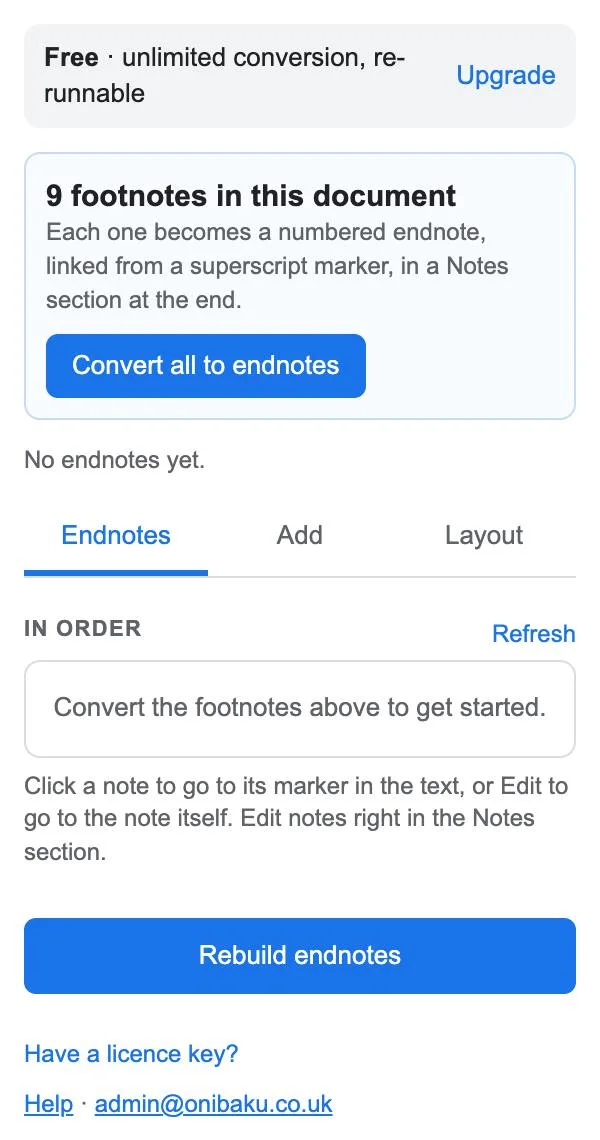
Re-runnable, not one-shot
Add a note mid-chapter, move paragraphs, delete a sentence: press Rebuild and the numbers and the order of the notes are right again. Running it twice changes nothing.
Book and thesis layouts
Notes at the end of the document or after each chapter, numbered 1, 2, 3 or i, ii, iii or a, b, c, on a new page if you like. Plain paragraphs, so they print and export to Word and PDF cleanly.
Getting started
- Open a document and choose Extensions → Live Endnotes → Open.
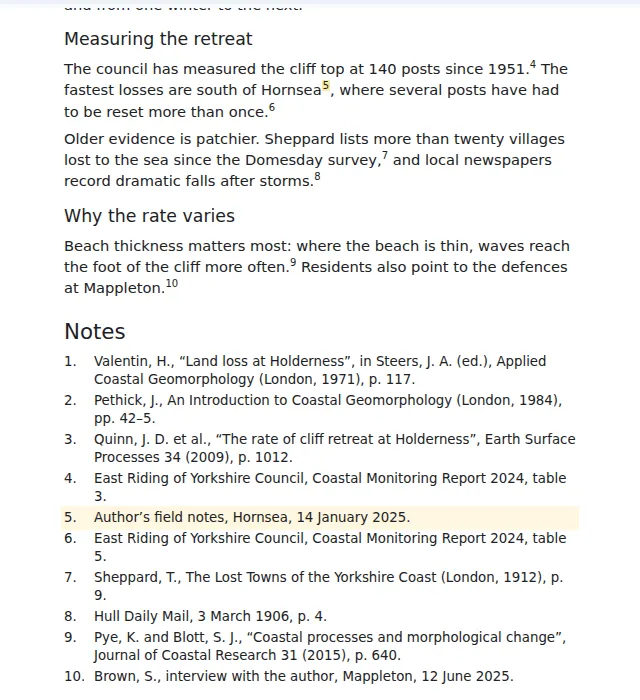
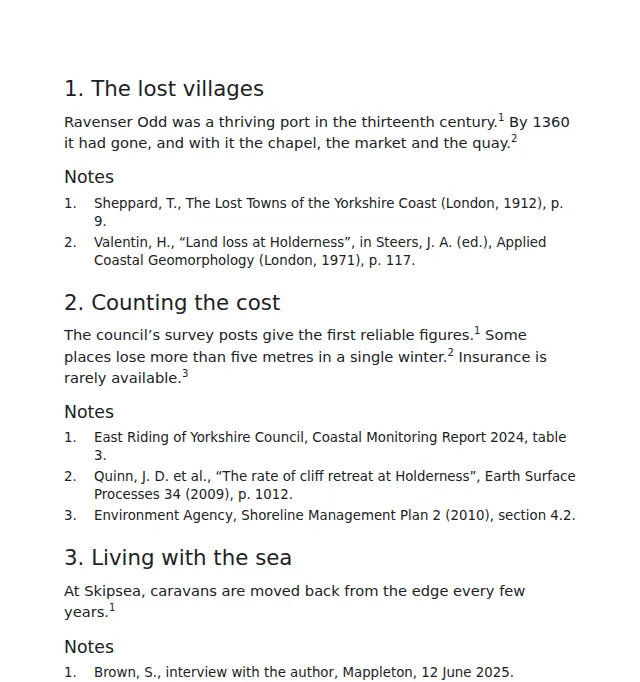
- If the document has footnotes, press Convert all to endnotes. They move to a Notes section at the end, numbered in the order they appear.
- To add a note, click in the text where the marker should go, open the Add tab, type the note and press Add endnote at cursor. It's numbered in place straight away.
- After editing, press Rebuild endnotes (also in the Extensions menu). The sidebar shows a dot that turns amber when the numbers are out of date.
Edit a note's text right in the Notes section. Hover over a marker in the text and Docs shows its note.
How it works
- Markers are superscript numbers linked to their notes. Because the link travels with the marker, you can cut and paste text freely, even into another tab, and Rebuild still knows which note it belongs to. Copy a marker and both copies share the same note and number.
- Notes are ordinary paragraphs under a Notes heading, each starting with its number, a full stop and a tab, with a hanging indent.
- Deleted a marker? Its note isn't thrown away: Rebuild moves it to the end of the notes, labels it "?", and the sidebar offers Delete unused notes.
- Deleted a note? Its marker is highlighted in yellow and listed in the sidebar so you can find it.
Options, on the Layout tab
- Numbers: 1, 2, 3 or i, ii, iii or a, b, c.
- Notes go: at the end, or after each chapter. "Chapter" means each Heading 1: every chapter gets its own Notes section, numbered from 1.
- Section title: Notes, Endnotes, or anything you like.
- Start the notes on a new page.
- In a document with tabs, each tab gets its own Notes section and numbering.
See it in 20 seconds
Converting footnotes to endnotes in Google Docs™. The video opens on YouTube.
Plans
Pro is £49 once and yours for good, or £3.99 a month or £24 a year.
The £49 payment never renews. Cancel a subscription whenever you like from Manage subscription in the sidebar.
| Free | Pro | Team | |
|---|---|---|---|
| Convert footnotes to endnotes | Any number | Any number | Any number |
| Add notes and rebuild | Up to 10 endnotes per document | Unlimited | Unlimited |
| Layouts, numbering styles and tabs | Yes | Yes | Yes |
| Price | Free | £49 once and yours for good, or £3.99 a month or £24 a year | £3 a person a month or £20 a year, from 3 people |
Upgrade from the sidebar. Payment is handled by Stripe, and Pro unlocks in the sidebar within a few seconds, on the Google account you upgraded from. The receipt page shows a licence key, which you can use to move Pro to a different Google account. Cancel or change your card any time from Manage subscription in the sidebar. Not happy? Email us within 14 days of a payment for a full refund.
On a Team plan, colleagues with an email address at the same work domain as yours get a seat automatically the first time they open the add-on. Anyone else joins by entering the team's licence key under Have a licence key?.
Security and your data
Details are in our privacy policy.
- Only the current document. The add-on can only open the document you're using it in. It can't see your other files, Gmail or Drive.
- Your document stays in Google. Notes are read and renumbered by Google Apps Script on Google's servers. Your text is never sent to Onibaku.
- What leaves Google: to check your plan, the add-on sends your Google account's email address to our licence server, plus anonymous counts of which buttons are used.
Help
Can I turn endnotes back into footnotes?
Not yet: Google only lets add-ons create footnotes with access to all your documents, and we'd rather not ask for that. Straight after converting, Edit → Undo brings the footnotes back, and File → Version history always can. Turning endnotes back into footnotes is planned.
The numbers didn't change while I was typing
Google doesn't let add-ons react to typing, so nothing renumbers by itself. Press Rebuild endnotes when you've finished a round of edits; it only changes what's out of date.
I'm working in suggestion mode
The add-on edits directly, not as suggestions, and text suggested for deletion still counts. Accept or reject suggestions before converting or rebuilding.
Small blue flags appeared next to my notes
Those are Google Docs bookmarks, which the markers link to. Docs shows them while you edit; they don't appear in print, PDF exports or for readers. If you delete one by accident, Rebuild puts it back.
A note is labelled "?"
Its marker has gone from the text. Put the marker back (Undo, or paste it where it belongs) and rebuild, or press Delete unused notes in the sidebar.
A marker is highlighted in yellow
Its note was deleted. Undo the deletion, or delete the marker, then rebuild.
Does it work with Word and PDF?
Yes. Markers are superscript text and notes are ordinary paragraphs, so they come out as they look in Docs. Word sees them as text, not Word endnotes.
I paid but the add-on still says Free
Reopen the sidebar on the Google account you upgraded from. If you paid from a different account, choose Have a licence key? and paste the key from your receipt page. Still stuck? Email admin@onibaku.co.uk with the email on your Stripe receipt and we'll sort it the same day.
It says a permission is missing
Google lets you untick permissions when installing. Press Allow access in the sidebar and tick everything, then press “check again”.
Footnotes in, endnotes out.
Found a bug, or want a feature? Email admin@onibaku.co.uk.
Google Docs™, Gmail™, Google Drive™ and Google Apps Script™ are trademarks of Google LLC. This add-on is not made or endorsed by Google.